The Markdown-first AI meeting notetaker

Samurai Scribe records any call from your own computer, with no bot joining, and writes a speaker-labeled transcript and a summary as Markdown files you own. Then an assistant answers from all of your meetings, citing the moment.

Watch the trailer (1 minute 42 seconds)
See pricing
  • Code-signed for Mac and Windows
  • No account
  • Free, or one payment for Pro

macOS 13+ on Apple Silicon · Windows 10 and 11 A desktop app for Mac and Windows

How it works

A call goes in. Markdown comes out.

Samurai Scribe records on your own computer, so no bot joins the meeting and nobody has to let one in. Transcription and speaker detection happen there too.

  1. 1 · Record

    Any call, or the room you're in

    Your microphone and the call's audio, recorded together. It works with Zoom, Google Meet, Teams or any other app, and in person. Echo removal keeps your speakers out of your mic, and you're warned if the other side isn't coming through. Turn on live subtitles and the words appear as people speak, free, in English or 40 languages.

  2. 2 · Speakers

    Who said what, line by line

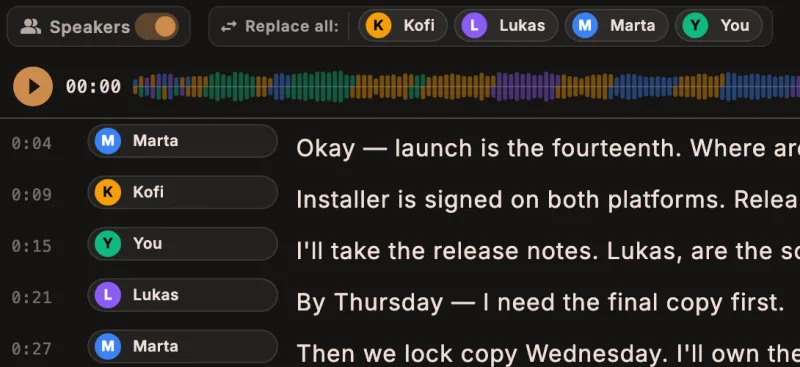
    A transcript with a speaker on every line, worked out on your computer. Rename “Speaker 1” once and every line, and the file, follows.

    A transcript in Samurai Scribe: Marta, Kofi, You and Lukas each labeled on their lines, with timestamps and a waveform coloured by speaker
  3. 3 · Summary

    A summary, saved as Markdown

    Written by the built-in model by default, or one you choose. It lands as Summary.md next to the transcript, ready for Obsidian or any editor.

    Summary.md
    ## Q4 Launch Sync
    Launch is on the 14th. Copy locks Wednesday.
    
    ### Action items
    - [ ] Marta: own the checklist, send tonight
    - [ ] Kofi: submit to the store on Friday
    - [ ] Lukas: final screenshots by Thursday

Your vault

Your meetings are files you own.

Every meeting is plain Markdown and its audio, in a folder you choose. Open it in Obsidian or any editor; it doesn't need Samurai Scribe to be read.

  • Obsidian-flavoured

    Wikilinks, callouts and properties. Every meeting has a note you can link to, and every transcript line has a heading, so a link can land on the moment.

  • The files are the truth

    Edit a meeting in any editor and the app picks it up, even while it was closed. Its index rebuilds from the folder.

  • No lock-in

    No account, and no cloud copy to export from. Back the folder up however you already do. Uninstall the app and every meeting is still there, readable.

  • Vault/
  • AGENTS.md for AI apps
  • Meetings/
  • 2026-10-14 Kickoff/
  • 2026-10-14 Kickoff.md meeting note
  • Transcript.md
  • Summary.md
  • Notes.md
  • _meeting.json
  • _playback.m4a
  • 2026-10-12 Customer interview/
  • Notebooks/
  • Unfiled/ loose notes
  • People/
  • Alice Chen.md person note
  • Bob Ruiz.md
  • Skills/
Meetings/2026-10-14 Kickoff/Transcript.md
### 0:04.0-0:11.0 [[Alice Chen]]
Let's lock the date. I'm proposing the 14th.

### 0:11.5-0:18.0 [[Bob Ruiz]]
The 14th works if copy is final by Wednesday.

### 0:18.4-0:23.0 [[You]]
I'll take the release notes.

AI Apps · MCP

Open to the AI apps you already use

Claude Desktop, Claude Code, Codex and Cursor can read your meetings over MCP. Folder rules decide what each one can see and change, and by default their changes wait for your review in Samurai Scribe. An AGENTS.md in the vault tells any agent how it is laid out.

Set up Claude, Codex or Cursor
> What date did we settle on in the kickoff? Add it to its summary.

⏺ samurai-scribe - search (MCP)(query: "launch date")
  ⎿  2026-10-14 Kickoff · Transcript.md, 0:04

⏺ samurai-scribe - edit_note (MCP)(Summary.md)
  ⎿  Suggested · waiting for your review

⏺ The 14th, proposed by Alice at 0:04. I've suggested the line for Summary.md; keep or discard it in Samurai Scribe.

Download free for Mac and Windows

The assistant

Ask your meetings anything. It shows you the moment.

It answers from your meetings and notes, files the follow-ups when you ask, and waits for your OK. Free, on a local model by default.

Every answer cites the moment

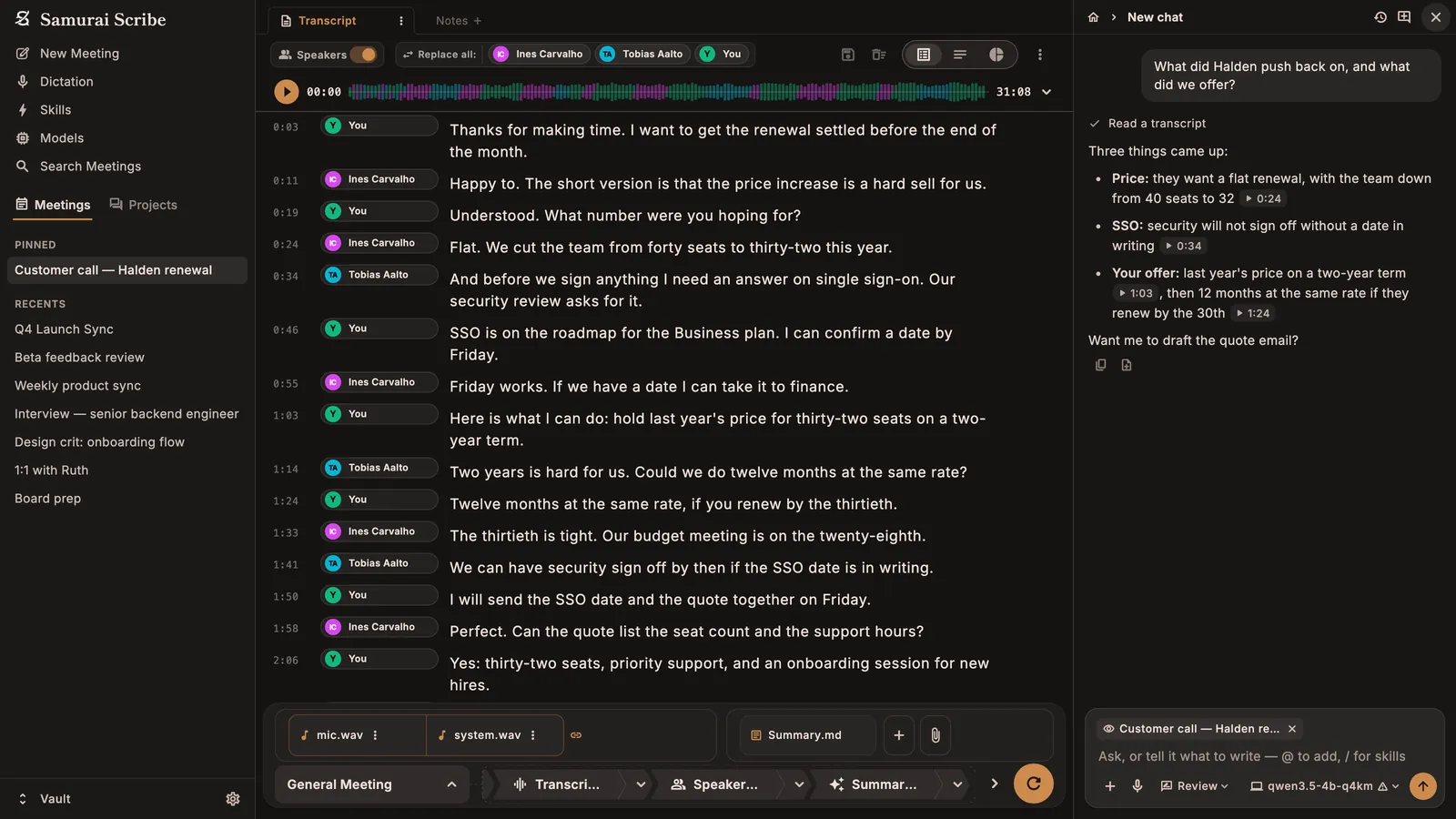
Ask across all your meetings and notes. Each answer shows where it came from: click a citation and the meeting opens at that moment, ready to play.

⌘JCtrl+J opens it beside any meeting. Or work full width in Projects.

A customer renewal call transcript beside the assistant answering "What did Halden push back on, and what did we offer?" in three points, each with a timestamp that matches a line in the transcript

Skills and connections

A skill is plain-English instructions for a task you repeat. Run one by hand, install one from the library, or make it a step of every summary.

Connections Beta

  • Linear
  • Notion
  • Jira & Confluence
  • Todoist
  • monday.com
  • ClickUp
  • Attio

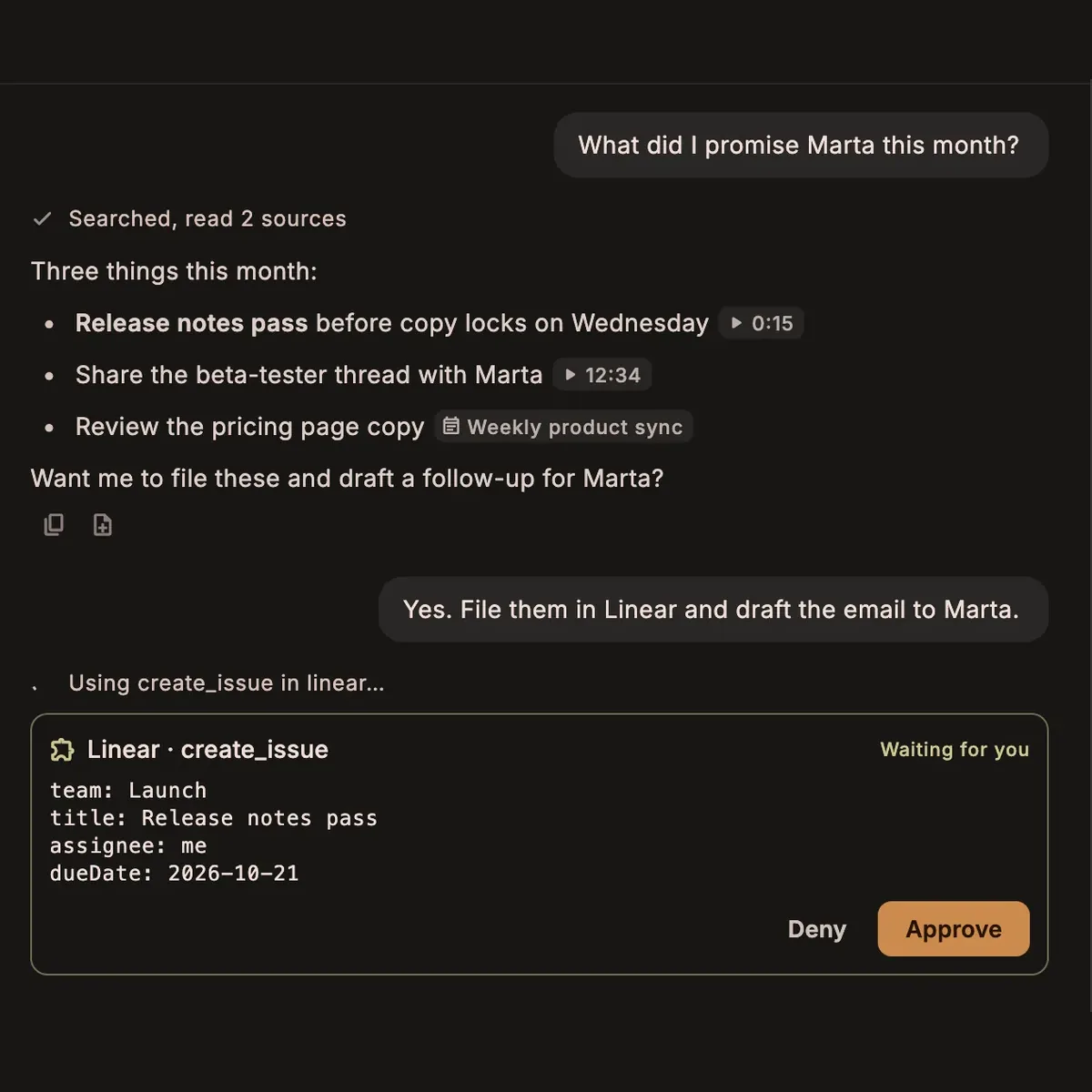
File issues, pages and tasks where your team works. For every action you choose: off, ask first, or allowed.

It drafts the follow-up email for you to open in Mail or Gmail. It never sends anything itself.

Browse the skills library →
The assistant listing three promises from past meetings, then about to create a Linear issue for one of them, waiting for the user to Approve or Deny

Changes wait for you

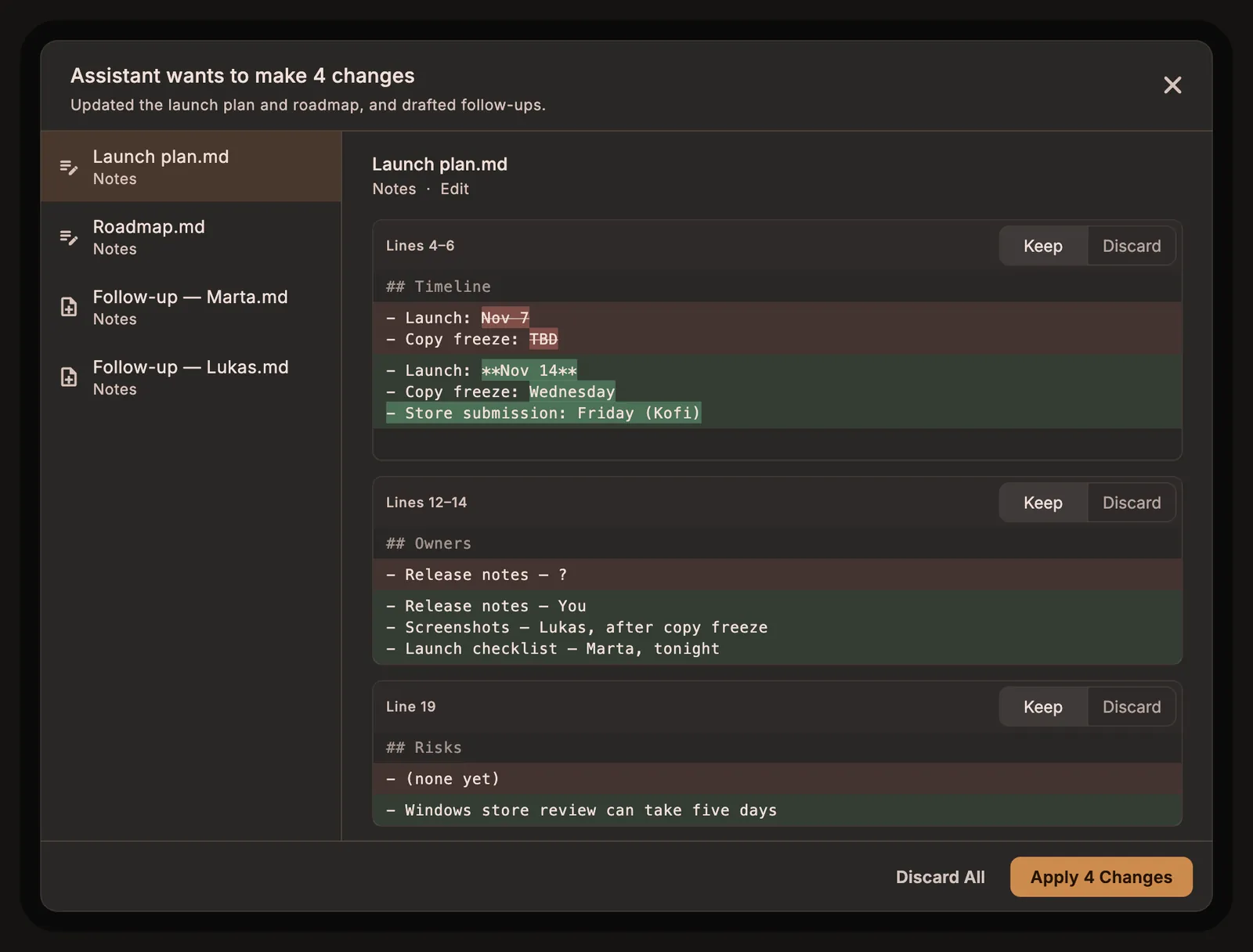
By default, the notes and edits it suggests wait for you to keep or discard, and you can undo them later. Rewind a chat to an earlier question to undo what came after.

How much it may do on its own

  • Ask
  • Review (default)
  • Accept edits
  • Auto
The assistant proposing changes to four notes, each shown as a diff with Keep and Discard buttons

Help during the call

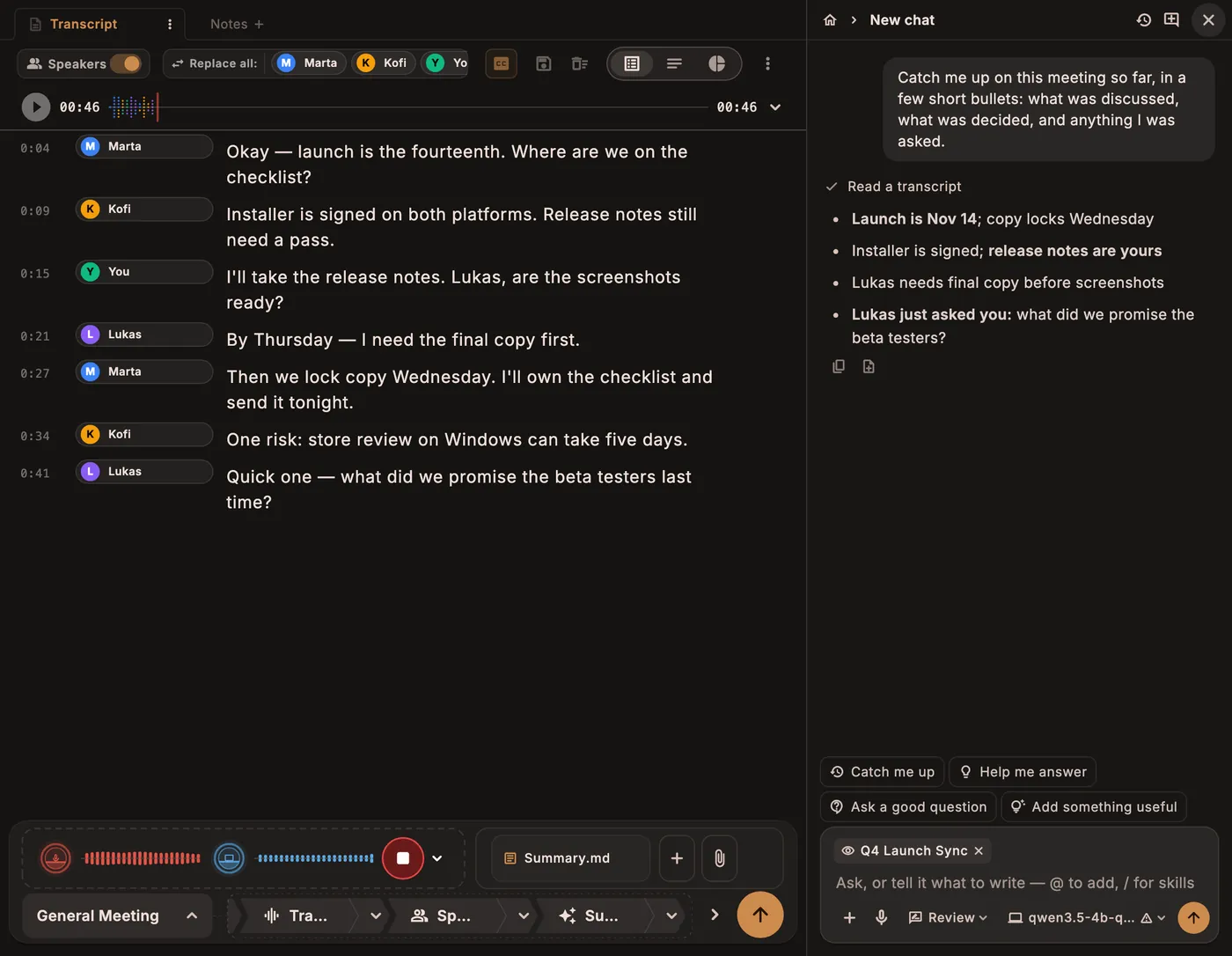
With live subtitles on, it reads the meeting as it records. It answers when you ask, and can keep running notes on the meeting.

  • Catch me upWhat was discussed, decided and asked so far
  • Help me answerPoints to say, from your notes and past meetings
  • Ask a good questionQuestions worth asking right now
  • Add something usefulA fact or earlier decision worth saying
A meeting being recorded with live subtitles, beside the assistant catching the user up in four bullets, with the Catch me up, Help me answer, Ask a good question and Add something useful buttons below

Your model, your call

The built-in local model by default. Or Ollama, LM Studio, or a hosted model: Anthropic, OpenAI, Gemini, OpenRouter or a custom address. The first time you pick a hosted one, the app tells you what will be sent, and to whom.

Skills that run by themselves Pro

Automations run a skill after meetings, before calendar meetings or on a schedule, while the app is open.

Exact output? Script it.

When a summary has to come out the same way every time, write a short Rhai script. Writing and running scripts is free.

stand-up.rhai rhai
// Stand-up notes: one line per person, every time.
fn run(ctx) {
  let m = ctx.meeting;
  let notes = m.summary;
  notes.text = "## Stand-up\n\n";
  for s in m.transcript.speaker_stats {
    notes.append("- **" + s.name + "**: ");
    m.llm.write(notes, "One sentence: what did " + s.name
      + " finish, and what's next?\n\n" + m.transcript.text());
    notes.append("\n");
  }
}

Everything new in 0.61 →

Also included

Also in the box

The everyday tools around your meetings. Free, unless a card says otherwise.

  • Dictation

    Hold fn, or Ctrl+Win on Windows, and talk into any app. Clean up polish is free; the other prompts, and your own, are Pro.

  • Import recordings

    Drop in a recording you already have, audio or video, or paste a link from YouTube or 1,000+ other sites. Importing a whole folder at once is Pro.

  • Translation

    Translate a finished transcript into any language you name, from its ⋮ menu. Every line keeps its time and speaker, and you review it first. Whisper models can also turn speech into English as they transcribe, the free ones included. Parakeet can't.

  • Calendar

    Google Calendar or an ICS feed shows what's coming up. Free asks before it records a meeting; Pro records it for you.

  • Echo cancellation

    Record on your laptop's speakers without the call ending up in your mic track a second time.

  • Speaker analytics

    Talk time, word counts and meeting length for each speaker, ready as soon as the transcript is.

Verify it yourself

Private, and you can check it.

“Private” is easy to claim. Here’s how to check it in five minutes.

  1. Turn off both switches

    In Settings → Updates, switch off automatic update checks and anonymous usage data, and keep AI on local models (the default). Once its two small core models are downloaded, the app then makes no background requests. (An activated Pro licence also checks in about once a day to stay valid.)

  2. Watch every connection

    Run Little Snitch on a Mac, or Wireshark on Windows, filtered to Samurai Scribe. Record and process a full meeting on local models, and see that nothing leaves your machine.

  3. Pull the plug

    Once your models are downloaded, turn off Wi-Fi. Recording, transcription, speaker labels, summaries and the assistant all keep working on the built-in model.

Every request the app can make is written down, with what it carries.

See every request the app can make

How it compares

Cloud note-takers and the best local tools, side by side.

Samurai Scribe compared with Granola, Otter.ai, MacWhisper and Meetily
Question Samurai ScribeGranolaOtter.aiMacWhisperMeetily
Does a bot join the call? No No Its bot does; its desktop app doesn’t No No
Where is the audio transcribed? On your computer In the cloud In the cloud On your Mac On your computer
What format are your notes in? Markdown files in a folder you choose Kept in Granola’s cloud Kept in Otter’s cloud An app library; exports Markdown A local database; Markdown export is Pro
Account required? No Yes Yes No No
Price Free · Pro $19 once Free · Pro $39 once Free (limited) · $14/mo Free (300 min) · from $8.33/mo Free · Pro €64 once Free · Pro $120/yr

Checked 14 Sep 2026 against each product’s own pricing and documentation pages; the bot and account rows re-checked 18 Oct 2026. Spotted something out of date? Tell us and we’ll fix it.

Pricing

One payment. Own it forever.

No account, no subscription — and the free tier never expires. Buy Pro when you want its extras; nothing you made ever locks.

Free

$0 no time limit

Not a countdown — it never expires. The assistant, skills and connections, dictation with AI polish, speaker detection, custom scripts, vaults and calendar, with Whisper Tiny, Base and Small and NVIDIA Parakeet.

  • No account
  • Mac and Windows
  • Unlimited transcription & AI summaries
  • Speaker detection, and voice prints that know the same person next time
  • The assistant — answers from all your meetings, with the moment cited
  • Skills — run by hand, from the library or your own
  • Connections to Linear, Notion, Jira & more (beta)
  • Works with Claude Code, Claude Desktop, Codex & Cursor (MCP)
  • System-wide dictation into any app, with AI polish
  • Local AI by default, or any model you choose
  • Custom summarization scripts
  • Vaults — your meetings as Markdown files you own
  • Calendar integration & speaker analytics
  • Record or upload, with echo cancellation
  • Whisper Tiny, Base & Small models
  • NVIDIA Parakeet v3 & v2 — English and 24 more European languages, on your GPU (Mac and Windows) or CPU
  • The Dictionary — your spellings of names and jargon, one list of ten entries

Pro

Lifetime licence

$19 List price $39 one-time · beta price · plus local tax

$39 one-time · plus local tax

For help while the meeting is still happening, skills that run on their own, the highest accuracy, and meetings you'd rather not have to remember to record. To hear a Pro transcription model on your own audio first, download it in Settings → AI Models → Transcription and try it in Compare models.

Beta price ends in

51% off until Monday, November 16 at 11:59 PM PST

Enter this code at checkout

A2ODE5OQ
Buy Pro — $19 Buy Pro — $39
  • Lifetime updates
  • 2 machines
  • 7-day money-back guarantee

Everything in Free, plus:

  • Live meeting help While you record: Catch me up, Help me answer from your notes and past meetings, Ask a good question and Add something useful — plus optional running notes. Works with live subtitles on.
  • Skills that run by themselves Run any skill after each meeting, before calendar meetings or on a schedule, while the app is open — and let a connection act without asking, if you allow it.
  • Whisper Medium, Large V3 Turbo & Large V3 The accuracy ladder for accented speech, noisy rooms and crosstalk.
  • Parakeet Ultra Parakeet retrained by Moondream: fewer missed words on calls, in noisy rooms and in long recordings. The same 25 European languages, English included, detected automatically.
  • The full polish prompt set, and your own Free polishes with Clean up. Pro adds Email, Message, Bullet points and AI prompt — and prompts you write yourself — on a key each, to rewrite selected text anywhere.
  • Automatic recording of calendar meetings Your calls record themselves and stop when the meeting ends. Free tier asks first.
  • A Dictionary as long as you need Free applies the first ten entries of one list; with Pro every entry applies, across as many lists as you keep.
  • A processing queue, and bulk imports Press Run on several meetings and they process one after another; the queue survives a restart. Import Bulk Recordings turns a folder, a selection of files or links into meetings dated from the recording. One meeting at a time is free.
  • Lifetime updates & license support

Enterprise

For teams

Per team priced by email

Pro for everyone on your team, and help getting it set up and through your IT review. Transcription never leaves your computers.

Email us
  • No accounts
  • Nothing to host
  • Mac and Windows

Everything in Pro for each person, plus:

  • Priority support
  • An onboarding call
  • Help with your security review

FAQ

Questions, answered.

What people ask before they install. Something else? Email us.

Are my conversations kept private?

Yes. Your recordings live in your own vault folder, transcription and speaker detection run on your computer, and your audio never leaves it unless you choose to contribute a recording. With local models (the default), your transcripts, summaries and notes never leave it either. We have no cloud servers to store your meetings, no account, and no access to your conversations.

Three things can send meeting text elsewhere, and each one is your choice: a cloud model you pick for summaries, polish or the assistant; a connection such as Linear or Notion, when one of its tools is used; and an AI app such as Claude Desktop that you connect, which sends what it reads to its own AI service. Separately, you can send a meeting to the developer yourself: with a bug report, or by contributing a recording to help improve transcription. All of these are spelled out in the network disclosure.

Is it HIPAA compliant? Will you sign a BAA?

No, and Samurai Scribe makes no such claim. There is no official HIPAA certification for software: compliance is about how a practice handles patient information, and an app is one part of that. Samurai Scribe does not sign Business Associate Agreements, because the app is built so that your patients' data never reaches its developer. What can be set out is what the software does, so you and whoever handles compliance for you can decide.

What the app does

  • Your audio is never sent anywhere unless you choose to contribute a recording to help improve the app, which asks you to confirm that everyone in it agreed. With local models (the default), nothing from your meetings is sent either: there is no account and no sync, and nothing reaches the developer unless you send it.
  • From version 0.63.0, the app's logs leave out meeting titles, people's names, email addresses, file names and what was said, so a bug report's logs carry none of them, and logs from earlier versions are deleted when it first starts. A meeting's text reaches the developer only if you pick that meeting under Include a meeting in a bug report.
  • Recordings, transcripts and notes are ordinary files in your vault folder. The app does not encrypt them itself and has no passcode of its own, so they are protected only by your computer's login and disk encryption.
  • There is no audit log of who opened, exported or deleted a meeting.
  • Deleting a meeting moves its folder to your Trash or Recycle Bin, where it stays until you empty it, and removes what the app kept of it elsewhere: the text sent to the AI model, its cached audio and waveform, and any link import of it. Two things can stay behind: any assistant chat that used it, until you delete that chat, and what the pictures in it were read as, kept on your computer for up to 30 days.
  • Dictated text is kept out of your clipboard history. The app keeps its own history of what you dictated, on your computer: 30 days on a new install, and everything on an install from before 0.63.0, until you change Keep dictation history in Settings → Dictation.

If you work with patient information

  • Turn on FileVault (Mac) or BitLocker (Windows).
  • Keep your vault out of iCloud Drive, OneDrive, Dropbox and any other synced folder, unless your agreement with that service covers it. The default vault is in Documents, which many computers sync, so check yours.
  • Keep summaries, polish and the assistant on a local model. A cloud model sends meeting text to its provider; choose one only if you have a BAA with that provider. An Ollama on another computer counts as a cloud model, and the app marks it as one.
  • The same goes for connections such as Notion or Linear, and for AI apps such as Claude Desktop that you let read your meetings.
  • When you report a bug, leave Include a meeting at None, and keep patient details out of what you write.

Every connection the app can make is listed in the network disclosure, so this can be checked rather than taken on trust.

Does it work offline? What does it connect to?

Yes. Recording, transcription, speaker detection, summaries, dictation and the assistant all run on your own computer, on its CPU or GPU, and keep working with Wi-Fi off once your models are downloaded. Transcription and speaker detection always stay on your machine. Summaries, polish and the assistant use the built-in local model by default; you can choose a cloud model for any of them instead, and the first time you do, the app tells you what will be sent and to whom.

Left alone, the app makes only a handful of network requests: a once-a-day update check (carrying anonymous usage data, which you can switch off), downloading an update if you choose to install one, downloading models, and — only if you buy Pro — checking that your licence is still valid. Connect a calendar and it will sync that too, read-only, to your machine. Import a video from a link and it fetches that video, plus — the first time, after you agree — the open-source downloader it uses, which then updates at most once a day and only when you import. Every one of them is listed, with what it carries, in our network disclosure.

How does it record without a meeting bot, and what permissions does it need?

Instead of inviting external bots to join your virtual meetings, Samurai Scribe records your system audio and microphone feeds directly at the OS layer. This allows you to capture Zoom, Google Meet, Teams, or Slack calls privately without displaying a bot in the call. When you first launch the app, macOS or Windows will ask you to grant permission to record audio. Windows needs nothing beyond that; macOS asks for a little more.

What it asks for today. To hear the other people on a call, the app needs to capture the audio your computer is playing. On macOS that currently means granting Screen Recording, which is broader than what we actually use — Samurai Scribe only ever reads the audio stream, and never captures your screen, your camera, or any video. macOS has since added a narrower "System Audio Recording Only" permission, and we are moving to it so the app stops asking for more than it needs. On Windows, capturing desktop audio needs no special permission at all.

What that permission can and can't lead to. Permission to hear your audio is only a risk if there is somewhere for that audio to go. There isn't. Your audio is never transmitted anywhere unless you choose to contribute a recording, and with local models (the default) nothing transcribed or summarized from it is either — there is no account, no sync, and no cloud processing of ours to send it to. Every network request the app is capable of making is written down in our network disclosure, and it's meant to be verified rather than believed: point Little Snitch or Wireshark at the app, record a full meeting, and you should see exactly that list and nothing else.

On third parties. The macOS build is signed with our Developer ID and notarized by Apple, so the copy you download is the one we built, and macOS refuses to run it if anything has altered it. The Windows installer, and the programs it installs, are signed through Microsoft’s Artifact Signing service under an identity Microsoft verified, so Windows can confirm the copy you run is the one we built, and a modified file no longer shows a valid signature. The heavy lifting is done by well-known open-source components — whisper.cpp for transcription, ONNX Runtime for speaker detection, ffmpeg for audio — and these are compiled into the app rather than fetched at runtime, so nothing can be swapped underneath you after you install. The one exception is the optional video downloader (yt-dlp, with Deno), which the app fetches from its official releases only when you install it or import a link, checks (yt-dlp against its maintainers’ signed checksums, Deno against a hash built into the app), and runs as a separate program.

Are summaries and the assistant local too? Which AI models can it use?

Local by default, and there is nothing else to install. Samurai Scribe ships with its own AI engine (llama.cpp) and downloads a capable default model — Qwen 3.5 (4B), which writes clear summaries in over 200 languages — the first time you need it. Summaries, dictation polish and the assistant all use it, on your machine.

Prefer your own setup? Point any of them at Ollama or LM Studio, or at a hosted model (Anthropic, OpenAI, Gemini, OpenRouter or a custom address), all from one model manager. For the assistant, a larger model than the built-in one does better on long, multi-step requests.

What can the assistant do, and can Claude Code, Codex or Cursor read my meetings?

Ask it about your meetings and notes, in a panel beside any meeting (⌘J on Mac, Ctrl+J on Windows) or full width in the Projects view. Answers cite the exact moment they draw on — click a citation to open the meeting at that moment, ready to play. It can suggest notes and edits, which wait for you to keep or discard in Review mode (the default) and can be undone later. It drafts emails for you to open in your mail app or Gmail; it never sends anything itself. The assistant is free.

Claude Code, Claude Desktop, Codex and Cursor can read your meetings too, over MCP, and that's free as well. Settings → AI Apps gives you the setup for each: a one-line command for Claude Code and Codex, or a block to paste into Claude Desktop's or Cursor's config file. Samurai Scribe needs to be open while they use it.

Folder rules decide what each app can see and change, and by default the changes they suggest wait for your review in Samurai Scribe. Connecting one sends nothing from Samurai Scribe itself, but the app you connect sends what it reads to its own AI service, under its own terms.

What languages are supported? Can it translate?

OpenAI Whisper natively supports 99 languages, including English, Spanish, French, German, Japanese, Mandarin Chinese, Italian, Portuguese, Dutch, Korean, Arabic, Hindi, Polish, and Swedish.

The app includes automatic spoken language detection and formats your local AI summaries in the same language as your conversation. NVIDIA Parakeet, free, recognizes 25 European languages, English included, automatically.

Translation comes in two forms. The assistant can translate a finished transcript into any language you name: open the transcript's ⋮ menu, choose Translate transcript… and type a language, such as German or Japanese. Every line keeps its time and speaker. Like any change the assistant suggests, it waits for you to keep or discard it in Review mode (the default), and a kept one can be undone later. It's free, and it works on any transcript, Parakeet's included. It runs on the assistant's model, the built-in local one unless you chose another, so a larger model does better on long meetings. Anything it can't translate is left as it was, and it tells you.

The other is an optional Translate to English toggle, which turns speech into English as it's transcribed (on any Whisper model, free ones included; Parakeet does not translate).

Can I transcribe recordings I already have, or videos from YouTube?

Yes. Drag a recording onto a meeting, or pick it from your files: MP3, M4A, WAV, FLAC, OGG, AAC, Opus and other audio, or the audio track of an MP4, MOV, MKV or WebM video. It gets the same speaker-labeled transcript and summary as a live recording, all on your computer, so a voice memo or an interview from your phone never leaves it. Importing a whole folder or many files at once, each as its own meeting, is part of Pro.

For video online, paste a link. The built-in downloader supports 1,000+ sites, including YouTube, TikTok, Instagram, Vimeo and podcast feeds: it downloads the media directly onto your computer, transcribes it locally, and saves clean Markdown into your vault. Nothing is uploaded, and the app sets up the downloader for you.

Is there a free trial of Pro, and how does the licence work?

Not any more. Since version 0.65, new installs start on the free version, which has no time limit and stays free. To see what a Pro transcription model does on your own audio first, download it in Settings → AI Models → Transcription and try it in Compare models, side by side with the model you use. A trial started before 0.65 finishes its ten days; when it ends, the app swaps any Pro model for a free one (Parakeet Ultra for Parakeet v3) and tells you.

Pro is a one-time payment (see pricing), with a 7-day money-back guarantee. You can activate it on up to 2 machines simultaneously. If you upgrade your computer or need to switch machines, you can deactivate the license from the app settings on your old machine to free up a slot for the new one.

Is it open source?

No. Meetily and a few others are, and if that is your deciding factor you should use one of them. What we offer instead is verifiability: the network disclosure, and output you can read without us — plain Markdown files in a folder you choose.

Skills are short Markdown files in the open Agent Skills format, and you can share your own in the public skills repository on GitHub (MIT-licensed).

What are the system requirements?

A moderate to modern computer is recommended for the fastest, hardware-accelerated transcription results (such as Apple Silicon Macs or Windows PCs with compatible GPUs). However, transcription is fully supported on almost any computer using CPU fallback.

macOS

  • Apple Silicon (M1, M2, M3, M4, etc.) with native Metal GPU acceleration. An Intel build is not available yet.
  • macOS 13 (Ventura) or higher — required for system-audio capture. Microphone recording and file uploads also work on macOS 12.
  • 8 GB RAM minimum.

Windows

  • Windows 10 or 11 (64-bit editions).
  • 8 GB RAM minimum (16 GB recommended).
  • Compatible GPU (NVIDIA, AMD, or Intel) with Vulkan support is highly recommended for hardware-accelerated inference. (Most modern NVIDIA, AMD, and Intel graphics drivers include Vulkan by default — no separate CUDA or SDK installation required.)
  • The installer adds Microsoft's WebView2 runtime if it's missing; the notes editor needs it.

Linux

Storage

  • Approximately 1.5 GB of free storage for the app and a speech-to-text model.
  • About 3 GB more for the built-in AI model that writes summaries and runs the assistant, downloaded the first time you need it. Skip it if you use Ollama, LM Studio or a hosted model instead.
  • Models are downloaded and managed directly within the app. Choose which models to keep locally and monitor disk usage from the built-in model manager.

Own your meetings.

Free to download and free to keep, with no account.

macOS 13+ on Apple Silicon Windows 10/11, 64-bit 8 GB RAM System requirements

Signed by Karl Frohlich. Windows may still ask you to confirm while the new signature builds reputation: click “More info” → “Run anyway”.