
Point Claude at your meetings.
Samurai Scribe includes an MCP server, so Claude Code, Claude Desktop, Codex and Cursor can search and read your meetings and notes, and suggest changes that wait for your review. It's free, and your meetings stay Markdown files in your own vault.
Set it up
In Samurai Scribe, open Settings → AI Apps and copy the line for your app. It comes with the helper's real path filled in, which is all that differs from the examples below.
Claude Code
Run once in a terminal.
claude mcp add --scope user samurai-scribe -- "<helper path>" --mcpCodex
Run once in a terminal.
codex mcp add samurai-scribe -- "<helper path>" --mcpClaude Desktop
Add to claude_desktop_config.json (Settings → Developer → Edit Config), then restart Claude.
{
  "mcpServers": {
    "samurai-scribe": {
      "command": "<helper path>",
      "args": ["--mcp"]
    }
  }
}
Cursor
Add to ~/.cursor/mcp.json (Settings → MCP → Add new server).
{
  "mcpServers": {
    "samurai-scribe": {
      "command": "<helper path>",
      "args": ["--mcp"]
    }
  }
}- Samurai Scribe needs to be open while an AI app uses it. The helper talks to the running app.
- On a Mac, run Samurai Scribe from Applications before you copy the line. A copy running from the disk image or straight from Downloads has a path that changes, and the setup stops working.
What they can do
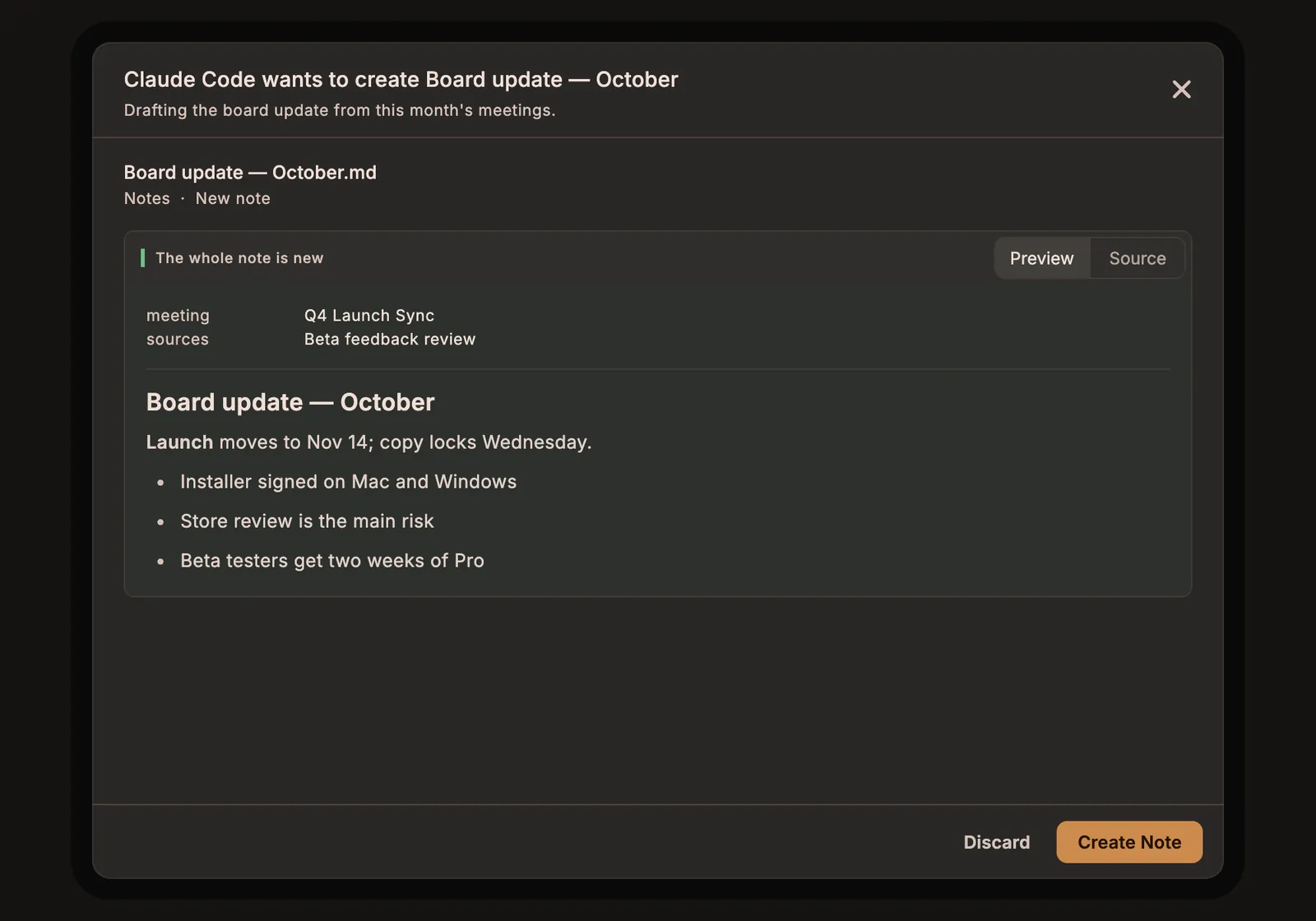
Twenty-one tools, the same ones the built-in assistant uses. Reading is immediate. Anything that would change your vault is a suggestion you review in Samurai Scribe.
Read 14 tools
search- Find meetings and notes by words, people or a phrase
list_meetings- List meetings by date, title, person or tag
get_meeting- A meeting's details: when, who, and what it holds
read_transcript- The speaker-labeled transcript, or part of it
read_document- One of a meeting's documents, such as its Summary
speaker_stats- Who spoke, and for how long
upcoming_meetings- What is on your calendar next
list_folder- What is in a folder of your vault
read_note- Any note in your vault
list_notebooks- Your notebooks and what they group
list_skills- The skills you have
use_skill- A skill's instructions, to follow them
read_memory- What the assistant remembers about you
check_change- Whether a suggested change was kept
Suggest 7 tools · you review each one
create_note- Suggest a new note
edit_note- Suggest edits to a note
move_note- Suggest moving or renaming a note
delete_note- Suggest deleting a note
create_notebook- Suggest a notebook for a subject
add_to_notebook- Suggest adding meetings to a notebook
create_skill- Suggest a new skill
You stay in charge
- Folder rules. Set each folder to Can edit, Read only or Hidden. Hidden folders never appear in a search or a listing. Your own notes start as read only; Samurai Scribe's folders start as editable.
- Review, by default. When an AI app suggests a change, you see exactly what would change and keep or discard each part. Moving or deleting a note always asks first. You can let edits apply at once instead (Apply Changes Without Asking), and every change can be undone.
- An
AGENTS.mdin your vault tells any AI app how the vault is laid out, so it finds meetings, transcripts and notes without guessing.
What leaves your computer
- Connecting an app makes no network request from Samurai Scribe. The app you connect starts a small helper on your computer, which reads from the running app over
127.0.0.1with a key that changes every time Samurai Scribe starts. - The AI app then sends what it reads to its own AI service, under its own terms, just as if you had pasted it in. Nothing is read until you ask it something.
- Every request the app can make is listed on the network disclosure.
Prefer one built in?
Samurai Scribe has its own assistant beside every meeting, on a local model by default. It answers with the exact moment cited, runs your skills, and works in Linear, Notion and more.
See the assistant →