
The assistant
Changes, modes and undo
What the assistant, skills and AI apps may change without asking. The four modes, reviewing a change, a meeting's changes, undo, rewind and deleted notes.
On this page
Nothing the assistant, a skill or an AI app writes reaches your vault until it is allowed to. Each write it proposes is a change: a new note, an edit, a move, a delete, a fix to a transcript or a translation of it, a renamed person, or something added to memory. Whether a change applies at once or waits for you depends on the assistant’s mode, or, for a skill running as a step or an automation, on that step’s or automation’s own settings. A change that applied can be undone, and undo keeps anything you wrote since.
The four modes
Pick the mode from the button under the assistant’s message box. Its tooltip reads “What the assistant may do without asking”.
- Ask: “Reads and answers; changes nothing”. In this mode the assistant can’t propose changes at all.
- Review, the default: “Every change waits for you”.
- Accept edits: “Edits and new notes apply; moves and deletes wait”.
- Auto: “Everything applies, and stays undoable”. A delete moves the note to the Trash.
The mode you pick stays for every chat on this computer until you change it.
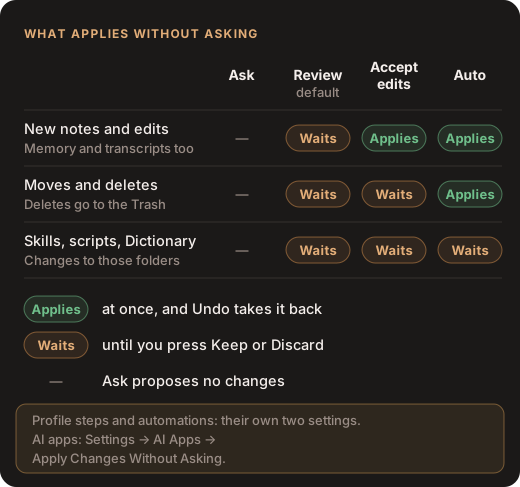
Some changes wait whatever the mode:
- Changes to your Skills, Scripts and Dictionary folders. A skill or a script goes on running long after anyone looked at it, and the Dictionary changes every transcript made after it, so a change to one always waits, even in Auto.
- Moves and deletes outside a meeting from a skill running as a step or an automation.
Who else decides:
- A skill you start yourself, from the Skills page or with Find names…, Polish transcript… or Translate transcript… in a transcript’s ⋮ menu, follows the mode, as a chat does.
- A skill running as a step of a processing profile, or from an automation, follows that step’s or automation’s two settings: This meeting (Its meeting for an automation), which starts on Auto, and Elsewhere, which starts on Review.
- AI apps such as Claude Desktop, Claude Code or Cursor follow Settings → AI Apps → Changes from AI Apps → Apply Changes Without Asking. It is off by default, so every change waits. Turned on, edits and new notes from AI apps apply at once; moves and deletes still ask.
What can be changed
- Markdown notes (
.md) only. PDFs, Word files, decks and images are read, never changed. - Only in folders set to Can edit in Settings → AI Apps → Folder Access. Folders set to Read only can be read and searched, and Hidden ones are never seen. See Folder access.
- Inside the vault’s hidden
.samurai/folder, only the assistant’s memory: About You and each project’s memory. - Transcripts and people change through the app, not as files: fixing words, translating, moving a line to another speaker, or renaming a person in every meeting they speak in. A change to a transcript can’t be kept while its meeting is processing: “Can be kept once processing finishes.”
Folder access is checked again when you keep a change. If the folder is no longer Can edit by then, the change isn’t applied and says “AI apps may no longer change this folder.”
The change card
In a chat, each change appears as a card under the step that proposed it. The card shows the file’s name and where the change stands, with how many places it adds and removes text (such as +3 −1), or where a move goes.
- While it waits: Keep applies it, Discard drops it.
- Once applied: Undo.
- Click the card to open the change in place, line by line.
- The ⋯ menu has Review…, the full review, and, once the change is applied, Open, which opens the note.
A change to memory is named for what it is: “What it remembers about you” or “What it remembers for this project”.
What the card’s status means:
| Status | Meaning |
|---|---|
| Waiting for you | Nothing is written yet. |
| Applied | It’s in your vault. Undo is offered. |
| Applied, merged with your edits | The note had changed since the assistant read it; the change went in around your edits. |
| Discarded | You dropped it, or the assistant withdrew it. |
| Not applied | It couldn’t go in without overwriting something; the reason is given. |
| Undone | It was applied, then undone. |
| Could not undo | Undoing it would have overwritten something you wrote since. |
| Changed again below | The assistant reworked it before you decided. The later card holds the whole change: decide that one. |
Reviewing a change
Review… opens the full review. Its title says who wants to do what, such as “Assistant wants to edit Project plan”.
- An edit shows the note’s Markdown with the changed words marked. Each changed region, labelled Line 12 or Lines 12–15, has its own Keep and Discard. Everything starts kept: discard the parts you don’t want.
- A new note, or one being deleted, is shown whole, as it reads. Preview and Source switch between the formatted note and its text.
- A change to several files lists them on the left. Keep or discard each one.
- A transcript change may say “Times on 3 lines are estimated from the text, not heard in the recording.” Check those times against the audio.
The main button names what it will do: Create Note, Apply Edit, Move to Trash, Move, Apply to Transcript, Rename, or Apply 2 Changes for several. Cmd+Enter on a Mac, or Ctrl+Enter on Windows, presses it. Discard (Discard All for several files) drops the whole change.
Once you decide, the review offers Undo (Undo All) and Done. When more changes are waiting, Next Change takes you to the next one, so you can go through them in one sitting.
All changes to a meeting
When the assistant, an AI app or a skill has changed a meeting, or anything from it, All changes appears in the meeting’s title bar, beside ⋯. Its tooltip says how many, such as “All changes (3 changes)”, or “All changes — one waits for you”.
- Click it for the list: who changed what, how long ago, and where it stands. Click one to open its review, where you can keep, discard or undo it.
- Full history…, at the end of the list, opens All changes to this meeting. It groups them under Waiting and Done, with those to the meeting itself under This meeting and those to other notes under Elsewhere, from this meeting. It also lists the documents the meeting’s steps wrote, each with How this was made, which opens the conversation the step ran in.
While a change to a meeting waits, a bar above the meeting’s tabs says so, such as “Assistant wants to edit Summary”, with Review…, Discard, Keep and All changes ›. When a step of the meeting’s processing is waiting on it, the bar starts “Processing waits for you:” (see Processing profiles). When a step applied changes by itself, the bar says what it changed, with Review and Undo.
Changes from skills, automations and AI apps
Changes you can’t see on screen announce themselves in a card at the bottom right of the window. Changes to the meeting on screen show in its own bar instead (see All changes to a meeting). The card shows changes from:
- an AI app waiting for your answer, which says “Claude Code is waiting”;
- a skill that ran by itself;
- a chat that isn’t on screen.
The card reads, for example, “Claude Code wants to edit Project plan”, with the lines it changes and how many more are waiting. It has Review…, Discard and Keep. A delete has no Keep there: review it first. The card’s × folds it into a small “2 changes waiting” pill until something new arrives.
An AI app that proposes a change waits up to about a minute for your answer. After that it carries on, and the change waits for you. A skill’s run is a chat in the assistant, so you can open it later and see what it did.
Settings → AI Apps → Changes from AI Apps lists recent changes, each with Review while it waits, or View afterwards, where you can undo it.
When the note changed in the meantime
You may edit a note, in Samurai Scribe or another editor, or a sync tool may change it, after the assistant read it and before you keep its change. Nothing you wrote is silently overwritten:
- When your edits and the change touch different lines, keeping the change merges it in: Applied, merged with your edits.
- When they touch the same place, the change is Not applied, with the reason, such as “The note was edited since, in the same place.” Ask again, and the assistant works from the note as it is now.
- A delete or a move doesn’t go ahead if the note changed since it was proposed: “The note was edited since; it was not deleted.”
Undo
Undo a change from its card, from the review (Undo or Undo All), from a meeting’s All changes, or from the list in Settings → AI Apps → Changes from AI Apps.
- An edit goes back to the text before, keeping what you wrote since. If your later edit is in the same place, the undo stops: Could not undo.
- A new note moves to the Trash. If you edited it since, it is kept.
- A delete puts the note back where it was.
- A move moves the note back.
The record of changes is kept on this computer, with the chats, so undo a change on the computer where it was made.
Rewind a chat
To take a chat back to an earlier point, hover over a question you asked and click Rewind to here (“undo what came after, and edit this”). Rewind to here? says what will happen:
- the question and everything after it are removed from the chat;
- changes the assistant made from there on are undone, and any still waiting are discarded;
- anything you wrote since is kept;
- your question goes back in the box, to change and send again.
If a change couldn’t be undone because you edited the same place since, a message names the note it kept.
Rewind reaches your vault only. Something a connection already did in another service, such as an issue created in Linear, stays done, and so does an email you opened and sent from your mail app.
Deleted notes
A note the assistant deletes goes to your computer’s Trash (the Recycle Bin on Windows), so you can restore it from there as well as with Undo. Where there’s no system Trash, as on some network drives, it goes to a trash folder inside the vault’s hidden .samurai/ folder instead.
Who may change which folders
What the assistant and AI apps may change is set folder by folder in Settings → AI Apps → Folder Access: Can edit, Read only or Hidden. The mode decides whether a change waits; folder access decides whether it can be proposed at all. A rule applies to its folder and everything in it. Folder access has the defaults and how to change them.
Something wrong, out of date or missing on this page? Email support@samuraiscribe.com or ask in the Discord community.