
Start here
How Samurai Scribe works
The path a meeting takes in Samurai Scribe, from recording or import to transcript, speakers, summary, your vault and the assistant.
On this page
Samurai Scribe turns the audio of a meeting into Markdown files on your computer, and then answers questions about everything you have recorded. Every meeting takes the same path, described below. The rest of the docs go into each part. New to the app? Your first meeting walks through setup, the downloads and a first recording.
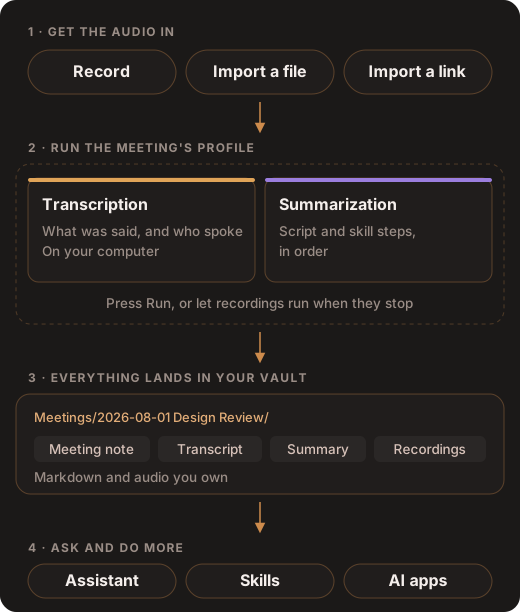
Getting the audio in
- Record. Samurai Scribe records your microphone and your computer’s sound (the other side of a call) as separate tracks. No bot joins the call, so it works with Zoom, Google Meet, Teams and anything else that plays sound on your computer.
- Import a file. Drop a recording you already have onto a meeting, or pick it from your files. Common audio formats work, and for a video file the app uses its sound.
- Import a link. Paste a link to a video or recording, such as one on YouTube, and the app fetches its audio into the meeting. The first time, it downloads the video downloader it uses for this.
Import Bulk Recordings brings in a folder or several recordings, each as its own meeting. One recording at a time imports free; importing more than one at a time needs Pro.
Running the meeting
Processing a meeting is called a run. Press Run on the meeting, or let it start by itself:
- Settings → Mic & Audio → Process automatically when a recording stops decides which recordings run on their own.
- The default, Calendar meetings, runs recordings you started from a calendar meeting.
- All recordings runs every recording. Never leaves every run to you.
A single file or link you import waits for you to press Run. Import Bulk Recordings runs each meeting with the profile you pick, unless you choose Import only, don’t process. Samurai Scribe has to be open for a run.
A run follows the meeting’s processing profile, which has two parts, shown on the meeting as Transcribe and Summarize:
- Transcription writes down what was said and works out who spoke, on your computer.
- The transcript is made the same way whether it was transcribed as you spoke, when you pressed Run, or uploaded.
- Voices are always told apart, as “Speaker 2” and so on. With Recognise people by voice on (in the profile’s Transcription settings, under Advanced), each line can be named on its own: a line that sounds like you, someone invited to the meeting, or someone you added with Add someone, gets their name. Anyone else the app knows is suggested, never named automatically. The app knows a person’s voice once you have confirmed their name in an earlier meeting.
- Your Dictionary fixes the spelling of your names and terms here, as it does wherever speech becomes text: meetings, live transcripts and dictation.
- The language and model are set in Settings → AI Models, and it runs on your computer’s graphics card or its processor: see Transcription.
- Summarization runs the profile’s steps in order. A step can be a script, a skill, or Name the meeting. The built-in profiles write a summary with the built-in script.
If the meeting was transcribed as you spoke (the live transcript, with the mode As you speak), it was already finished with your meetings model as you recorded, speakers and all. The run keeps that transcript and goes straight to summarization, and Transcribe reads Done. Click it to transcribe the meeting again from its audio when you run.
Each part needs its model. If one isn’t ready, the run stops and says why: Models Not Ready (download it), Models Downloading (wait for it), or Model Not Set Up (add a hosted model’s key or address in Settings → AI Models). See Your first meeting.
New meetings use the built-in General Meeting profile unless you choose another one, or make your own: see Processing profiles.
Summaries use the built-in model on your computer unless you choose another in Settings → AI Models:
- Ollama or LM Studio;
- a hosted model from Anthropic, OpenAI, Google Gemini or OpenRouter;
- a server at an address of your own.
Without Pro, one meeting runs at a time: start the next one when the first is done. With Pro, meetings you run while another is processing wait in a queue.
Running a meeting again
You can run a meeting again, for example with another profile or a better model. If the run would replace something the meeting already has, such as its transcript or summary, the app asks first: Rerun & Overwrite Meeting Data? names what will be replaced. Overwrite & Process goes ahead.
Warning
Running again replaces what it rewrites, including any edits you made to it, and can’t be undone. Copy out anything you want to keep first.
Everything lands in your vault
Each meeting becomes a folder of Markdown and audio in your vault, a folder you choose. A meeting’s folder holds:
- a meeting note;
- the transcript, with a heading for each line of speech giving its time and speaker;
- the summary and any other documents the steps wrote;
- the recordings.
You can open, edit, sync and back up these files with any tool, and edits you make outside the app are picked up. Leave the files whose names start with _, and the vault’s .samurai/ folder, as they are: they are the app’s. People you name get a note of their own, and transcripts link to them. The vault explains the layout and what you can change.
Asking the assistant
The assistant answers questions about your meetings and notes. Open it:
- in a panel beside any meeting, with Cmd+J on a Mac or Ctrl+J on Windows;
- full width in the Projects tab of the sidebar.
Its answers cite what they draw on. Click a citation to open the meeting at that moment, or the note it came from. The assistant can also write notes and suggest edits. By default every change waits for you to keep or discard it: see Changes, modes and undo. The assistant is free. The assistant covers what it reads and how to point it at a meeting, and Projects and chats how its chats are kept.
Doing more
- Skills are plain-English instructions for a task you repeat, such as “turn this meeting into a follow-up email”. Run one from the Skills page in the sidebar, type / in a chat, or add it as a step of a profile. Skills are free, and you can write your own.
- Automations run a skill by itself after each meeting is processed, before calendar meetings, or on a schedule, while the app is open. Automations need Pro.
- Scripts decide exactly how a profile writes up a meeting. They are short programs in the Rhai language, and they are free.
- Connections (beta) let the assistant and skills work in services such as Linear, Notion, Jira & Confluence, Todoist, monday.com, ClickUp and Attio, and Labs: add a custom server… adds others. Connections are free; a connection acting in an automation needs Pro.
- AI apps let Claude Desktop, Claude Code, Codex, Cursor and Gemini CLI search and read your meetings while Samurai Scribe is open. Set them up in Settings → AI Apps, or see AI Apps. AI apps are free.
What leaves your computer
- Transcription, including telling speakers apart and recognising them, always runs on your computer.
- With the built-in model, the default, your recordings, transcripts, summaries and notes stay on your computer. The exceptions are ones you choose: including a meeting in a bug report, or sending recordings with Contribute recordings….
- A hosted model, a connection or an AI app sends what it needs to the service you picked, and nowhere else.
- Once a day the app checks for updates and sends anonymous usage data: its version and your OS, nothing about your meetings. You can turn off either one in Settings → Updates: Check for updates automatically and Send anonymous usage data.
The network disclosure lists every request the app can make. For what Pro adds, see pricing.
Something wrong, out of date or missing on this page? Email support@samuraiscribe.com or ask in the Discord community.