
Projects and files
Folder access
What the assistant and connected AI apps may do in each folder of your vault, Can edit, Read only or Hidden. The defaults, how rules apply, and what each guarantees.
On this page
Folder access decides what AI may do in each folder of your vault: the assistant in Samurai Scribe, the skills and automations it runs, the scripts in your processing profiles, and the AI apps you connect. Every folder has one of three levels. It is about AI only: nothing is locked or encrypted, and you, Obsidian and any other app can still open every file.
The three levels
- Can edit. AI can search and read the folder, and can propose new notes, edits, moves and deletes there. Whether a change waits for you is up to the assistant’s mode, or the settings of the profile step or automation making it; see Changes, modes and undo.
- Read only. AI can search and read the folder, and can’t change anything in it.
- Hidden. AI never lists, searches or reads the folder. To AI it doesn’t exist: asking for something in it gets the same answer as asking for a file that isn’t there.
The defaults
- Every folder in your vault starts as Can edit, your own folders as well as Samurai Scribe’s: Meetings, Notebooks (with
Unfiledin it), People, Skills, Dictionary, Profiles and Scripts. So do notes at the very top of the vault, outside any folder. By default AI’s changes there wait for you, apart from what a profile step or automation changes in its own meeting, and a change that applies can be undone. Set a folder to Read only if it holds notes you want left alone. - Folders beside your vault, which AI sees only with Include Parent Folder on, start as Read only.
- Folders whose names start with a dot, such as
.obsidian,.git,.trashand.samurai, are always Hidden.
Up to 0.64.1, your own folders, and notes at the top of the vault, started as Read only. A level you chose yourself is kept.
How a rule applies
A rule applies to its folder and everything in it, and the deepest rule wins. A file follows its folder.
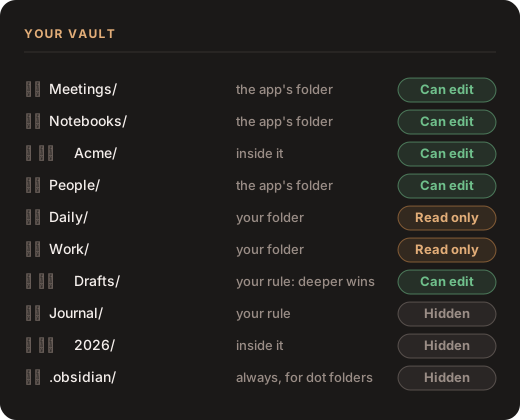
One exception keeps the app working: an app folder keeps its own level against a rule on a folder above it. If your Meetings folder is at Work/Meetings, hiding Work hides your notes in it but not your meetings. To change Meetings, set a rule on Meetings itself.
Rules inside Meetings work like any other: set a folder inside Meetings, or one meeting’s folder, to Hidden, and AI can’t find, list or read the meetings in it. Asking about one gets the same answer as asking about a meeting that doesn’t exist. To hide every meeting, set the Meetings folder itself to Hidden.
With Meetings set to Hidden, the assistant, skills, automations and AI apps can’t find, read or change any meeting, and a Hidden folder inside it does the same for the meetings in it. A skill run on a hidden meeting can’t read its transcript or documents, though it is still told the meeting’s title, date, speakers and the names of its documents. A script in a processing profile still gets the meeting it is run on, but what it reads elsewhere in the vault follows these rules like everything else.
Where to set it
In Settings. Settings → AI Apps → Folder Access lists the app’s folders first, marked Samurai Scribe, then each folder at the top of the vault, then any other folder with a rule. Pick Can edit, Read only or Hidden for each.
In Files, for any folder, however deep:
- Click Show what AI may do here, the crest under the filter box. Each row gets a mark: a pencil for AI can edit, an eye for AI can view, a crossed-out eye for Hidden from AI.
- Click a folder’s mark, or open its menu, for What AI may do here: Can edit, Read only, Hidden, or Use the default.
A change takes effect at once, for the next thing the assistant or an AI app looks up.
Who it applies to
- The assistant in Samurai Scribe, in every chat, and the skills and automations it runs.
- The steps of your processing profiles: a skill step, and a script reading or changing notes outside its meeting. See Notes outside the meeting.
- AI apps connected through Samurai Scribe with Settings → AI Apps → Connect an App: Claude Desktop, Claude Code, Codex, Cursor and Gemini CLI. Samurai Scribe applies the same rules to whatever they ask for.
- AI tools that open your vault’s files directly, such as Claude Code started in your vault’s folder, don’t go through Samurai Scribe, so it can’t stop them. Instead, AGENTS.md lists your Hidden folders under Private folders and asks AI tools not to open them. That is a request: most tools read the file, but none is forced to follow it.
Note
Once you edit AGENTS.md, the app stops updating it, so folders you hide later aren’t added to its list. Add them yourself, or put the app’s version back with Settings → AI Apps → Agent Guide → Restore Default.
Read only, Can edit and the assistant’s modes
The mode decides when a change applies; folder access decides whether it can happen at all.
- Even in Auto mode, the assistant can’t change a Read only folder. Set the folder to Can edit first.
- A skill you start yourself from the Skills page follows the assistant’s mode, as a chat does.
- A step of a processing profile follows its own two settings, This meeting and Elsewhere, and an automation its Its meeting and Elsewhere. Whatever they say, a step or an automation changes only folders set to Can edit.
- For AI apps, Apply Changes Without Asking, under Changes from AI Apps in Settings → AI Apps, does the mode’s job. Off, the default, every change waits for you. On, edits and new notes apply at once and can be undone. Moves and deletes always ask.
- A waiting change to a folder you’ve since made Read only or Hidden can no longer be kept: the app says AI apps may no longer change that folder.
- Changes to the Scripts, Skills and Dictionary folders always wait for you, whatever the mode or setting: a script or skill runs again long after anyone looked at it, and the Dictionary changes how every later transcript is spelled.
- Whatever the level, AI changes only Markdown notes. It never changes PDFs, Word files, decks or pictures, or any file whose name starts with
_.
Include Parent Folder
If your vault is a folder inside another notes folder, such as a Samurai Scribe folder inside your Obsidian vault, AI sees only the vault at first. Include Parent Folder, in Settings → AI Apps → Folder Access, lets AI see the rest of the folder around it, so it can read your other notes beside your meetings. Files then shows that folder too.
- Your notes there start as Read only, unlike the folders in your vault.
- It isn’t offered when your vault sits directly in your home folder.
- Turning it on or off puts every folder choice back to its default. If you’ve made choices, the app asks first.
If every folder shows as Hidden
If Folder Access says every folder is hidden from AI apps because the vault’s folder rules could not be read, the rules kept in the vault’s .samurai/ folder may have been written by a newer version of Samurai Scribe on another computer, or caught in the middle of a sync. AI sees nothing until they can be read, and nothing is changed meanwhile. Update Samurai Scribe on this computer, or wait for the sync to finish. The message names the file: if neither helps, restore it from your sync tool’s history or move it aside.
Something wrong, out of date or missing on this page? Email support@samuraiscribe.com or ask in the Discord community.