
Your vault
Using Samurai Scribe with Obsidian
Keep your meetings in your Obsidian vault. Which folder choice to make, what meetings look like in Obsidian, links, tags, Dataview queries, plugins and syncing.
On this page
Samurai Scribe writes the way Obsidian writes Markdown: wikilinks, embedded images and properties. Point it at your Obsidian vault and every meeting shows up there as ordinary notes, linked to the people in it, and edits you make in either app reach the other. The vault describes the files themselves; this page is about working with them in Obsidian.
Use your Obsidian vault as the vault
In Settings → Vault, press Change… and pick a folder. See choosing the vault. Samurai Scribe then asks how to use it:
- Use “Second Brain” (named after your folder) makes your Obsidian vault the vault. Meetings go in next to your notes, in
Meetings/,People/,Notebooks/and so on, and folders you already have with those names are used as they are. The app’s.samurai/folder sits next to.obsidian/. This is the highlighted choice when the folder you picked is the top of an Obsidian vault. - Make a Samurai Scribe folder inside keeps everything the app writes in one
Samurai Scribe/folder, and the rest of your vault looks the way it did. This is the highlighted choice for any other folder, including one inside an Obsidian vault.
Use "Second Brain"                 Make a Samurai Scribe folder inside
Second Brain/                      Second Brain/
├── .obsidian/                     ├── .obsidian/
├── .samurai/                      ├── Daily/
├── AGENTS.md                      ├── Projects/
├── Daily/                         └── Samurai Scribe/
├── Projects/                          ├── .samurai/
├── Meetings/                          ├── AGENTS.md
├── People/                            ├── Meetings/
└── Notebooks/                         ├── People/
                                       └── Notebooks/
Obsidian links and searches across the whole vault either way. Using it as it is suits you if you link meetings from daily notes or project pages, or already keep a People/ folder.
Filing the app’s folders under your own. You can also use the vault as it is and then move the app’s folders where you’d look for them, such as Work/Meetings and Work/People, in Settings → Vault → Folders and Settings → Vault → People notes. See moving the app’s folders.
Tip
With the Samurai Scribe folder inside your vault, the assistant and connected AI apps see only that folder at first. To let them read the rest of your Obsidian vault too, turn on Include Parent Folder in Settings → AI Apps → Folder Access. See Folder access.
What you’ll see in Obsidian
Each meeting is a folder in Meetings/, named after its date and title, holding:
- the meeting note, named after the folder, such as
2026-08-01 Design Review.md. It holds the meeting’s properties, and below them is yours to write in; Transcript.md, one heading per line of speech, each linking its speaker;Summary.mdand any other documents a script, a skill or you wrote;- the recordings and the app’s record of the meeting, whose names start with
_. An imported file keeps its own name.
One meeting’s folder lists every file and property. The transcript and every document the app, a script or a skill writes have a meeting property linking the meeting note, and the transcript links people, so the links fit together like this:
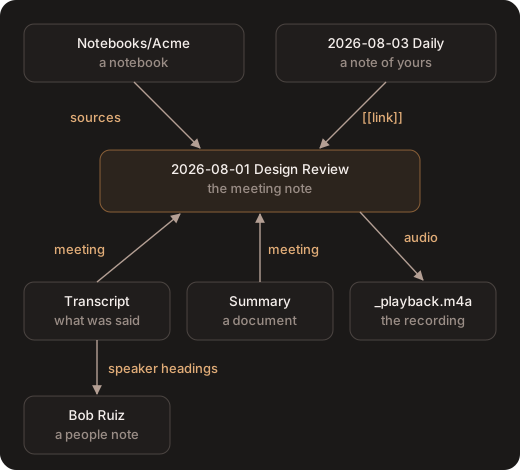
So, in Obsidian:
- A meeting note’s backlinks list its transcript, the documents the app wrote, the notebooks it’s in, and every note of yours that links to it.
- A person’s backlinks list the transcripts of every meeting they spoke in.
- The graph shows meetings clustered around the people in them and the notebooks they belong to.
Linking to meetings, people and moments
- A meeting:
[[2026-08-01 Design Review]]links to its meeting note. Obsidian suggests it as you type. - A document in it:
[[2026-08-01 Design Review/Summary]], or embed it in a daily note with![[2026-08-01 Design Review/Summary]]. - A person:
[[Bob Ruiz]]links to their people note. - A moment: type
[[2026-08-01 Design Review/Transcript#and pick the line from Obsidian’s suggestions. Clicking such a link in Samurai Scribe opens the meeting at that moment. - The recording: the meeting note’s
audioproperty links the playback copy. Open it to play the meeting in Obsidian, or embed it with![[2026-08-01 Design Review/_playback.m4a]].
Properties and tags
A meeting note’s properties are title, date and tags, which are yours to change, and samurai_id, samurai_kind and audio, which you leave alone.
- Change
titleand the app renames the meeting, its folder and the links to it. A title you set yourself is kept: later runs don’t rename the meeting. - Change
dateand the app files the meeting under that day. tagsare the meeting’s tags in the app, both ways. Nested tags such asclient/acmeshow as a tree in the app’s meeting filter, as Obsidian’s Tags view shows them.- Only the
tagsproperty counts for a meeting. A#tagwritten in a meeting’s text isn’t one of the meeting’s tags in the app, though Obsidian still lists it. - Properties of your own are fine on any of the app’s files, and a run that rewrites a document keeps them.
The transcript and documents have samurai_kind: transcript or samurai_kind: document, and a meeting property linking the meeting note. People notes have samurai_kind: person.
Dataview queries
The properties above are enough for Dataview. These examples assume the meetings folder is called Meetings.
Every meeting, newest first:
```dataview
TABLE date, tags
FROM "Meetings"
WHERE samurai_kind = "meeting"
SORT date DESC
```
Meetings in the last week:
```dataview
LIST
FROM "Meetings"
WHERE samurai_kind = "meeting" AND date >= date(today) - dur(7 days)
SORT date DESC
```
Every meeting tagged client/acme:
```dataview
LIST
FROM #client/acme
WHERE samurai_kind = "meeting"
```
This also finds a meeting whose note has #client/acme written in its text, which the app doesn’t count as one of the meeting’s tags.
Every meeting Bob Ruiz spoke in, from the transcripts that link him:
```dataview
TABLE WITHOUT ID meeting AS "Meeting"
FROM [[Bob Ruiz]]
WHERE samurai_kind = "transcript"
SORT meeting DESC
```
Obsidian’s own Bases can filter on the same properties, such as samurai_kind is meeting.
People and notebooks
People. When you name a speaker, they get a note in People/. If exactly one note in your vault already has that name, the app uses it rather than making another, adding its samurai_id and samurai_kind properties.
- Rename the note in Obsidian and the person is renamed in the app.
- Add email addresses under its
emailsproperty, and the app recognises the person on calendar invites. - Write anything you like in the note’s body; the app never changes it.
- Don’t want the notes? Turn them off in Settings → Vault → People notes.
Notebooks. A notebook is a folder in Notebooks/ holding a note of the same name, whose sources property lists its meetings:
sources:
  - "[[2026-08-01 Design Review]]"
  - "[[2026-08-08 Design Review]]"
Add a meeting with Add to notebook… on its menu in the app, or by adding a link to sources in Obsidian. In the app, Ask about this notebook on the notebook’s folder in Files asks the assistant across all of it.
Dictionary lists
The Dictionary, your spellings of names and jargon, keeps its lists as notes in Dictionary/, starting with Main.md. Edit them in Obsidian as freely as in the app: each entry is a bullet, with what it is misheard as before an arrow.
---
samurai_kind: dictionary
enabled: true
---
- cooper netties, kuber nettis -> Kubernetes
- [[Dana Ruiz]]- Only notes with
samurai_kind: dictionaryare lists. If you already keep aDictionary/folder, say of vocabulary you’re learning, the app uses it, but its notes stay yours and never change a transcript. - Links count as their text, so linking a people note adds that person’s name.
- Write notes around the entries. Headings, paragraphs and comments are ignored.
Lists are notes in your vault has the whole format.
Editing in both apps
- Edits in Obsidian reach the app while it’s running, and the next time it starts if it was closed. If it ever seems out of step, press Rescan Vault in Settings → Vault.
- A note open in both apps: if you change a note in Obsidian while it’s open in Samurai Scribe, the app shows the new version within a couple of seconds. If you had unsaved typing there, it asks: Reload or Keep mine. It never saves over a newer version without asking.
- Transcripts: fix wording freely, but keep the
### start-endpart of each heading as it is. - Renaming and moving a note yourself in the app updates links to it in your other notes, as Obsidian does.
- Leave alone the files whose names start with
_, the.samurai/folder, and thesamurai_id,samurai_kind,meetingandaudioproperties. Move a meeting’s whole folder, never single files out of it. See what you can edit, and what to leave alone.
Plugins. Plugins that move, rename or rewrite files on their own can work against a meeting’s files: auto-filers, linters that rewrite properties, or templates applied to every new file in a folder. Leave the Meetings folder out of them. If something renames a meeting note away from its folder’s name, the app renames it back.
Pictures work both ways too. One you paste in Samurai Scribe is saved beside the note, and an embed you wrote in Obsidian, such as ![[diagram.png]], shows in Samurai Scribe.
Syncing
Obsidian Sync skips hidden folders, so it doesn’t carry .samurai/. Your meetings, people notes and Dictionary lists arrive on your other computer, but projects, assistant memory, voice prints, folder access, automations and the lists of calendars and connections stay behind, and people aren’t recognised by voice there.
To keep all of it, sync the vault with a tool that carries the whole folder, hidden files included, such as iCloud Drive, Dropbox, Syncthing or git. Syncing and backing up shows what travels and what stays on each computer.
If you file meetings in subfolders of Meetings/, update Samurai Scribe on every computer first: versions before 0.61 only look at the top level.
AI tools in your vault
AGENTS.md, at the top of the vault, tells AI coding tools such as Claude Code, Codex and Cursor how the vault is laid out and what not to touch. If you keep your own CLAUDE.md, add the line @AGENTS.md to it. See AGENTS.md and AI tools, and Folder access for what AI may read and change in each folder.
Something wrong, out of date or missing on this page? Email support@samuraiscribe.com or ask in the Discord community.