
Your vault
The vault
Where Samurai Scribe keeps your meetings, a folder of Markdown and audio you own. What is in it, what you can edit, what to leave alone, and how to sync it.
On this page
The vault is an ordinary folder on your computer where Samurai Scribe keeps your meetings, people, notebooks, skills, profiles, scripts and Dictionary lists. Almost everything in it is a Markdown file, an audio file or a small settings file, along with scripts and any files you attach to meetings. So you can open it in Obsidian or any other editor, back it up, or sync it between computers.
Choosing the vault
On first launch the app makes a vault for you: a folder called Samurai Scribe in your Documents folder. To use another folder, open Settings → Vault and press Change… (Choose folder… if no folder is set).
Whichever folder you pick, you choose how to use it:
- The button named after your folder, such as Use “Second Brain”, makes that folder the vault. Meetings go straight into it, next to what you keep there, in
Meetings/,People/and so on. Folders you already have with those names are used as they are. - Make a Samurai Scribe folder inside makes a
Samurai Scribe/subfolder the vault. Everything the app writes, includingAGENTS.mdand.samurai/, stays inside it, and the rest of your folder stays as it was.
If the folder is the top of an Obsidian vault, using it as it is is the suggested choice. For any other folder, the subfolder is. Obsidian links and searches across the whole vault either way. Using it as it is suits you if you link meetings from daily notes or project pages. Using Samurai Scribe with Obsidian has more.
What is in the vault
Your vault/
├── AGENTS.md      a guide for AI coding tools, written by the app
├── Meetings/      one folder per meeting
├── People/        a note for each person you name
├── Notebooks/     notebooks, plus Unfiled/ for loose notes
├── Skills/        one folder per skill
├── Profiles/      processing profiles you made or changed
├── Scripts/       scripts for writing up meetings
├── Dictionary/    your spellings of names and jargon, Main.md first
└── .samurai/ the app's settings for this vaultPeople/, Notebooks/, Skills/ and Dictionary/ appear the first time something is written there. Each Dictionary list is a note you can edit by hand: The Dictionary describes the format.
Moving the app’s folders. You can move or rename them inside the vault:
- Settings → Vault → Folders has Meetings, Profiles, Scripts, Skills, Notebooks and Dictionary. Press Change… beside one and pick where it should be.
- The People folder is set under Settings → Vault → People notes.
If you pick an empty folder, or one that isn’t there yet, the whole folder moves there. If you pick a folder you already keep things in, the app’s files move in beside yours. Links to them in your notes follow. When a move can’t be made, the app says why:
- something there has the same name as one of the app’s files, and nothing moves at all;
- the folder you picked is another of the app’s folders, sits inside one, or holds one;
- a recording is in progress, or a meeting is being processed. Try again once it’s done.
Moving the Dictionary folder into one of yours moves only the Dictionary’s lists. Other notes there stay as they are.
People notes. Everyone you name gets a note in People/. You can turn this off in Settings → Vault → People notes. Turned off, people are known by voice and name only.
One meeting’s folder
Each meeting is a folder named after its date and title. The folder is renamed when the meeting’s title changes.
Meetings/2026-08-01 Design Review/
├── 2026-08-01 Design Review.md   the meeting note
├── Transcript.md                 what was said
├── Summary.md                    written by a script or a skill
├── Notes.md                      your own notes
├── _meeting.json                 the app's record of the meeting
├── _mic_audio.wav                your microphone
├── _system_audio.wav             your computer's sound
└── _playback.m4a                 the recording you play back
Other documents a skill, a script or you add to the meeting sit beside these, and so do files you attach. A meeting made from an imported file has that file instead of the two .wav files, under its own name.
The meeting note is named after its folder, so [[2026-08-01 Design Review]] links to the meeting. Its properties:
samurai_id: …          # don't change
samurai_kind: meeting  # don't change
title: Design Review
date: 2026-08-01
audio: "[[2026-08-01 Design Review/_playback.m4a]]"
tags: [client/acme]- Change
titleordateand the app renames or re-dates the meeting to match. tagsare the meeting’s tags in the app: add and remove them freely.- Write anything you like below the properties.
The transcript has one heading per line of speech, giving its start and end time and the speaker:
### 12:13.4-12:15.0 [[Bob Ruiz]]
Let's ship the redesign on Friday.- Speakers link to their people notes, so a person’s backlinks list every meeting they spoke in.
- To link to a moment in Obsidian, type
[[2026-08-01 Design Review/Transcript#and pick the line from the suggestions. Clicking such a link in Samurai Scribe opens the meeting at that point.
The transcript and the documents the app, a script or a skill writes all have a meeting property linking back to the meeting note, so the note’s backlinks list them. A file you add yourself is left as you wrote it.
What you can edit, and what to leave alone
You can edit:
- a meeting note’s
title,dateandtags, and anything below its properties; - the wording of a transcript, keeping the
### start-endpart of each heading as it is; - the summary, your notes and any other document;
- people notes: rename the file to rename the person everywhere, and add addresses under
emailsso the app recognises them on calendar invites.
Leave these alone:
- Files that start with
_, and an imported recording with its.wavcopy. They are the app’s record of the meeting and its recordings. - The
.samurai/folder. It holds the app’s settings for this vault. - The properties
samurai_id,samurai_kindandmeeting, and a meeting note’saudio. They are how the app knows which files belong to which meeting. Adding properties of your own is fine. - A meeting’s files belong in its folder. Don’t move single files out of it.
- Create meetings in the app, not by making folders by hand.
The recordings and disk space
- A recording has
_mic_audio.wav,_system_audio.wavor both, one per track recorded, uncompressed. - An imported file keeps its own name, with a
.wavcopy beside it if it isn’t one already. _playback.m4ais a smaller copy made for playing back, and the app can make it again.
Nothing removes recordings by itself. If you need the space, delete them in the app: the menu on a meeting’s recording has Delete and Delete all recordings. The transcript and notes are kept.
Warning
Recordings are the one part of a meeting that can’t be made again. Deleting one can’t be undone, and without it the meeting can’t be transcribed again. Don’t change or delete them by hand.
Changes you make outside the app
Edits you make in Obsidian or any other editor are picked up while Samurai Scribe is running. Edits made while it was closed are picked up the next time it starts.
If the app ever seems out of step with the files, press Rescan Vault in Settings → Vault, or in the vault switcher at the foot of the sidebar. Either one reads the vault again.
Filing meetings in subfolders
You can file meeting folders anywhere inside Meetings/, such as Meetings/2026/08/ or Meetings/Acme/, and the app keeps track of them. A meeting folder can’t live outside Meetings/. New meetings start at the top of Meetings/.
Always move a meeting’s whole folder, never single files from it. If you sync the vault between computers, update Samurai Scribe on all of them first: versions before 0.61 only look at the top level of Meetings/.
Several vaults
You can keep more than one vault, for example one for work and one for personal meetings. Open the vault switcher at the foot of the sidebar and choose Manage vaults…:
- Create new vault makes a new folder.
- Open folder as vault uses a folder you already have.
Each vault’s menu has Rename vault…, Move vault…, Reveal vault in Finder (Reveal vault in Explorer on Windows) and Remove from list. Removing a vault from the list leaves the folder and every meeting in it on disk.
Syncing and backing up
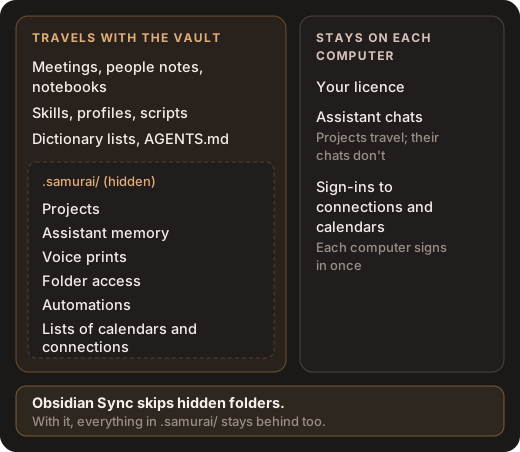
Use a tool that syncs the whole folder, hidden files included, such as iCloud Drive, Dropbox, Syncthing or git. Sync the hidden .samurai/ folder along with the rest. Dictionary lists are ordinary notes, so they travel with any sync tool. The vault’s projects, assistant memory, people’s voice prints, folder access, automations, and its lists of calendars and connections travel in it.
Warning
Obsidian Sync skips hidden folders, so it doesn’t carry .samurai/. Your meetings and people notes arrive on the other computer, but projects, assistant memory, voice prints, folder access, automations and the lists of calendars and connections stay behind. People aren’t recognised by voice there. See Using Samurai Scribe with Obsidian.
These stay on each computer, whatever you sync with:
- your licence;
- assistant chats: projects travel, but their chats stay on the computer they were held on;
- sign-ins to connections and calendars: the lists travel, and each computer signs in once.
AGENTS.md and AI tools
AGENTS.md tells AI coding tools such as Claude Code, Codex and Cursor how the vault is laid out and what not to touch. It also lists any folders set to Hidden in Settings → AI Apps → Folder Access, for tools that read files directly: see Folder access. The app keeps it up to date; in Settings it is called the Agent Guide.
- You can edit
AGENTS.md. Once you do, the app stops updating it. Settings → AI Apps → Agent Guide → Restore Default brings the app’s version back. - If you keep your own
CLAUDE.md, add the line@AGENTS.mdto it. - To let an AI app search and read your meetings through Samurai Scribe, use Settings → AI Apps → Connect an App. AI Apps has the steps for each app.
Something wrong, out of date or missing on this page? Email support@samuraiscribe.com or ask in the Discord community.