
Profiles and scripts
Scripting
Scripts decide exactly how a profile writes up a meeting, and can update notes across your vault. Where they live, the editor, the step's settings, and a first script.
On this page
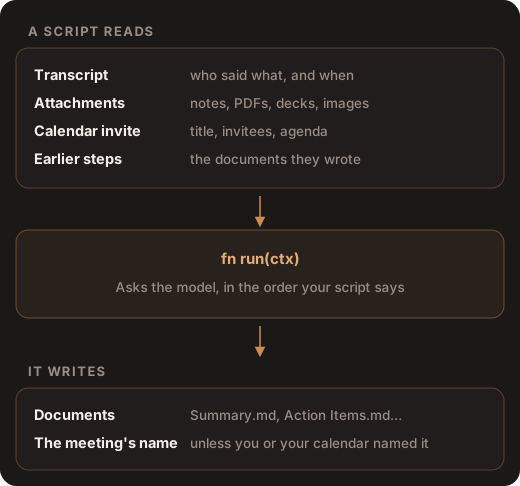
A script is a short program that writes up a meeting after it is transcribed. It runs as the Script step of a processing profile, and it decides exactly what gets written: which documents, what the model is asked for each, in what order, and whether the meeting gets a new name. It can also read your other notes, and add to or change notes elsewhere in your vault, such as your daily note, as far as you allow. Scripts are written in Rhai, a small scripting language that reads much like JavaScript.
Every built-in profile runs the built-in script, which writes Summary.md and names the meeting. You write your own when you want different documents, or exact control over them. Writing, testing and running scripts is free.
The scripting reference lists everything a script can use, and the cookbook has complete scripts to start from.
Script or skill?
A profile’s steps can be a script, skills, or both. Each suits different work:
- A skill is plain-English instructions. The model follows them and decides for itself which of your other meetings and notes to look through. Pick a skill when the task needs judgement.
- A script is a program. It sends the model exactly the requests you write, and writes exactly the documents and notes you name. Pick a script when you want the same shape of output every time, need long meetings handled in parts, want a note elsewhere updated the same way after every meeting, or want something worked out without the model at all, such as who spoke most.
A profile runs one script. To get the built-in summary and something more, write a script that makes both, or add a skill step after the script.
Where scripts live
- Your scripts are files in the vault’s
Scripts/folder, one.rhaifile each, named after the script:Scripts/Action items.rhai. They go wherever the vault goes, so a synced vault has them on every computer. You can move the folder in Settings → Vault → Folders. - The built-in script isn’t a file. It comes with the app and improves with it. You can open it and read it in the editor, and a new script starts as a copy of it.
The app reads the Scripts/ folder when it starts, and again when you save, rename, delete or import a script in the app, or move the folder. A run uses the copy the app last read, so a .rhai file you add or edit outside the app is used after one of those, or the next time Samurai Scribe starts.
Choosing a script for a profile
Open the profile manager and find the Script step in the Summarization panel. If the profile has none, add it with Add a step → Script. On the step:
- The script button, beside Script, shows which script runs: Built-in default or a script’s name. Click it for the list:
- Built-in default, which “Ships with the app”.
- Your scripts. … (Script options) beside one has Rename and Delete. Deleting removes the file and can’t be undone.
- Open, on each row, chooses that script and opens it in the editor.
- Search or name a new script…: type a name that isn’t taken and press New to make a script. It starts as a copy of the built-in script, so it runs before you change anything.
- Import .rhai… copies a script file into your scripts and asks what to call it.
- Clicking the step (Open the script) opens the chosen script in the editor.
- This meeting and Elsewhere say what the script’s changes may do by themselves: in this meeting’s folder, and in the rest of your vault. See Notes outside the meeting.
Then save the profile (Save, or Save as New for a template) so it keeps running that script.
The script editor
Clicking the step, or Open in the script list, opens Edit Script: the script, with a toolbar above it. A console opens below for results when you press Validate or Test.
- Validate checks the script without using the model: it compiles it and tries it on a short sample meeting, so a part of the script that only long meetings or real answers reach isn’t checked. The console’s Problems tab says ”✓ Script is valid”, or shows the first error with its line and position.
- Test runs the script on the meeting you have open, with the real model, the meeting’s attachments and its calendar details. Each document the script writes gets a tab in the console and fills as the model writes it; Title shows a new name if the script gives one. Test saves nothing to the meeting. It reads your vault for real but changes nothing in it: what the script would change elsewhere is listed in a Vault tab. It needs a meeting with a transcript.
- print and debug in a script show in Problems, under “script output”, while you test.
- Cmd+R on a Mac or Ctrl+R on Windows opens find and replace.
- Open in VS Code saves a copy of the script to a file you choose and opens it in VS Code, or shows the file’s folder if VS Code’s
codecommand isn’t installed. Bring your changes back with Import .rhai….
When you close the editor, your edits stay with this meeting’s settings, and the script’s name on the script button turns orange (“Unsaved script” in place of Built-in default). Icon buttons at the right end of the script button then offer:
- Save script, which saves the edits into the script’s file. For edits to the built-in script it asks for a name and saves a new script.
- Save as new script, which saves them under a new name.
- Discard edits, which goes back to the saved script.
What happens when a script runs
- Progress. While the script runs, the Summarize stage fills and the run’s status shows the messages the script reports, such as “Finding action items…”.
- What is saved. Each note the script writes becomes a document in the meeting’s folder and a tab in the meeting: a note called
Action Itemsis saved asAction Items.md. A name starting with a dot, such as.Working, makes a hidden document. Writing an empty note leaves an empty document: a script can’t delete one. With the step’s This meeting set to Review, the documents wait for you to keep them, the Summary included, and the steps after it wait too. - Notes elsewhere. What the script changes outside the meeting is made, or waits for you, when its step ends, as the step’s Elsewhere setting says. See Notes outside the meeting.
- The meeting’s name. A script can rename the meeting. It is never renamed when you named it yourself, or when its name comes from your calendar.
- If the script fails partway, from a mistake in it or a model error it doesn’t catch, nothing it wrote is saved, in the meeting or elsewhere. The run stops with an error that says why; a mistake in the script reads “Summary generation failed: Script run() error: …”. In a profile with more than one step, the message also names the step.
- If the script doesn’t compile, the run uses the built-in script for that meeting instead, and says so: “Your script could not be compiled (…). The built-in default script was used instead — fix the script in the script editor.” The message gives the compiler’s error, with its line and position. Validate before you save, so this doesn’t catch you out.
- If it declares an API version this app doesn’t run, the run uses the built-in script and says so. See API versions.
- If you stop the run, nothing the script wrote is saved.
Tip
A script runs again whenever its meeting is run again, and rewrites the documents it writes. Write the documents a script makes as its own, and keep your notes in documents it doesn’t touch.
Notes outside the meeting
A script can read any note in your vault, and add to or change notes outside its meeting: put a link to each meeting in your daily note, keep a running list of action items, or file flashcards in a deck. It reaches them through ctx.vault; the reference has every function, and the cookbook has a complete script.
What it may change is your choice, made on the step’s row in the profile manager, not in the script. Elsewhere has three settings:
- Ask: the step reads other notes and changes none.
- Review, the default: its changes wait for you, and so do the steps after it. The meeting’s run reads Waiting for your review until you keep or discard them.
- Accept edits: edits and new notes are made as the step ends, and can be undone. Moving or deleting a note still waits for you. The app asks before you turn this on, because notes then change for every meeting the profile runs on, automatic runs included.
This meeting is about the documents the script writes into its own meeting: Auto (the default) and Accept edits save them as the step ends, and Review holds them, the Summary included, until you keep them.
Whatever the settings, a script reads only what folder access lets AI see, changes only Markdown notes in folders AI may edit, and its changes to the Scripts, Skills and Dictionary folders always wait for you. The All changes button in the meeting’s title bar lists the changes made from the meeting, each opening its review, where an applied change can be undone and a waiting one decided.
A first script
This script writes Action Items.md: one checkbox per task, with who owns it, in the language the meeting was held in.
// Action items: one checkbox per task, with who owns it.
const API_VERSION = "1.6";
const TEMPERATURE = 0.2;

// What to ask the model. Rhai functions can't see variables from outside
// them, so the text lives in a function that is handed what it needs.
fn instructions(language) {
    let rule = if language == "" {
        "Write in the same language as the transcript."
    } else {
        "Write in " + language + "."
    };
    "List every task someone agreed to do in this meeting.\n"
        + "Write one Markdown checkbox per task: - [ ] **Owner** — the task.\n"
        + "Add a due date only if one was said. Use only what the transcript says.\n"
        + "If nobody agreed to do anything, write: No action items.\n"
        + rule
}

fn run(ctx) {
    let meeting = ctx.meeting;
    let transcript = meeting.transcript;

    // Nothing was said: write nothing.
    if transcript.word_count == 0 {
        return;
    }

    let items = meeting.create_note("Action Items");
    ctx.progress(0.1, "Finding action items…");
    meeting.llm.write(items, instructions(transcript.language)
        + "\n\nTranscript:\n" + transcript.text());
}
What each part does:
const API_VERSION = "1.6";says which version of the scripting API the script is written for.const TEMPERATURE = 0.2;asks the model for steady rather than varied wording. Write it with a decimal point.fn run(ctx)is where every script starts.ctx.meetingis the meeting being written up.transcript.languageis the language most of the meeting was in, such as “Spanish”, or empty when it can’t tell.meeting.create_note("Action Items")opens the document the script writes to.meeting.llm.write(...)asks the meeting’s model and writes its answer into the note as it arrives.
To try it:
- Open a meeting that has a transcript, and open the profile manager with Manage.
- Click Show profiles, then ⋯ (Profile options) beside General Meeting, and choose Duplicate. Type a new name, such as “Action items”, and press Duplicate.
- In the Script step, click the script button, type
Action itemsand press New. - Click the Script step to open the script, select everything, and paste the script above in its place.
- Press Validate. Problems should say ”✓ Script is valid”.
- Press Test and watch the Action Items tab fill.
- Close the editor and press the Save script icon at the right end of the script button. Then press Save.
Meetings run with the new profile now get Action Items.md. This profile no longer writes the built-in summary, and the script doesn’t name the meeting: add a Name the meeting step after it if you want that (see Steps). For the summary as well, the cookbook shows a script that writes several documents. A transcript too long for the model in one go needs handling in parts: see Long meetings.
Rhai, briefly
Rhai’s own guide is the Rhai book. A few things catch people out:
- Functions can’t see variables from outside them. Pass values in as arguments. A constant defined at the top of the script can be read inside a function as
global::NAME. trim()andreplace()change a string in place and return nothing. Writetext.trim();on its own line, then usetext.- Backtick strings can span lines and fill in
${name}, but they keep\nas the two characters. Use"…"for a string with\nnew lines. transcript.text()is a function,note.textis not. Write the brackets on one and not the other.meeting.llmgives a fresh copy each time. To change its settings, keep one:let llm = meeting.llm;, thenllm.temperature = 0.1;.- Maps are written
#{ key: value }, and errors can be caught withtry { … } catch (err) { … }.
Something wrong, out of date or missing on this page? Email support@samuraiscribe.com or ask in the Discord community.